

4 Ways to Shrink Bundle Size
Rollup 4 brings stricter defaults and new optimization hooks that can bloat your output if ignored. Here are four concrete steps to shrink your bundle size and keep your build lean.
-

Enable tree shaking for unused exports
Rollup 4 removes dead code automatically if you structure modules correctly. Ensure every export is used or explicitly marked as unused. Avoid default exports that bundle entire libraries when only one function is needed. This practice strips away dead weight before the build finishes, keeping your final bundle lean and efficient without manual intervention. -
Configure external dependencies to exclude
List heavy libraries like React or Lodash in the external config. This tells Rollup to ignore them and assume they exist in the global scope or are loaded separately. You avoid bundling gigabytes of code that users already have. It shifts the responsibility of caching these assets to the browser, significantly reducing your initial download size. -
Apply code splitting for route-based chunks
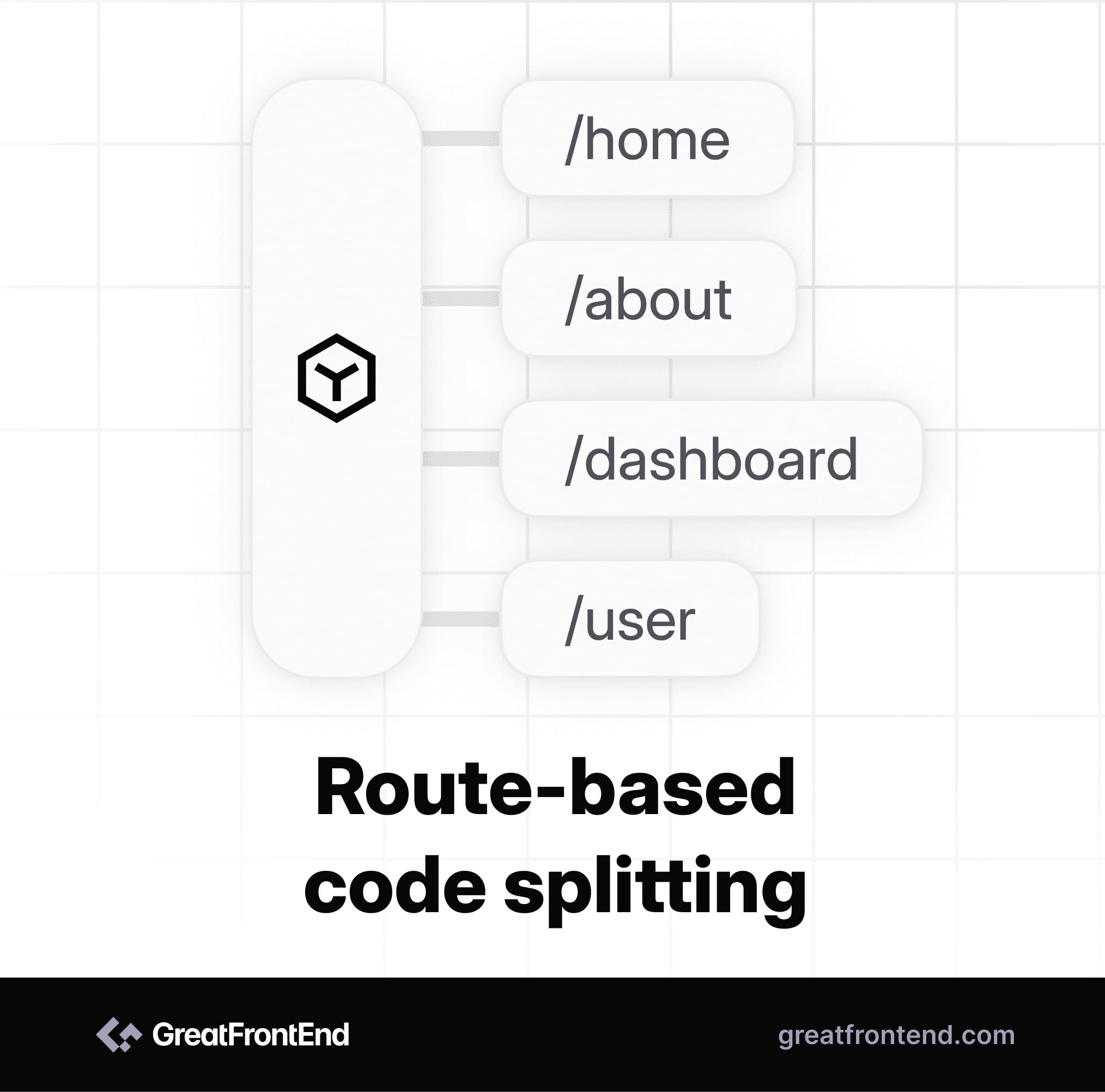
Break your application into smaller chunks based on user navigation paths. Use dynamic imports to load code only when a specific route is accessed. This prevents users from downloading unused JavaScript for pages they will never visit. It creates a faster initial load time by delivering only the essential code required for the current view. -
Minify output with terser plugin settings
Configure the Terser plugin to remove comments, whitespace, and unused variables. Enable mangle options to shorten variable names without breaking functionality. This step shrinks the final JavaScript file size considerably. It ensures that every byte sent to the client is necessary code, improving parse time and overall application performance for end users.
Enable production flags early
The most common mistake in bundle optimization is leaving development defaults active when building for production. Rollup 4 includes specific configuration options that tell the bundler to strip debug code, minify output, and remove dead branches. Without these flags, your "production" build often looks identical to your development version—just larger.
Think of these flags as the difference between a prototype and a finished product. A prototype has labels, comments, and extra checks so developers can understand it. A finished product removes all that clutter so the end user gets only what is necessary. Enabling production flags ensures your code behaves like the finished product.
The primary flag for this is production. When set to true, Rollup applies stricter optimizations, including tree-shaking unused exports and removing console.log statements. It also enables minification if paired with a plugin like @rollup/plugin-terser. This single setting is the foundation of rollup 4 optimization.
Below is the practical difference between a basic config and one optimized for production. Notice how the production flag changes the output behavior.
While Rollup 4 doesn't have a single production: true boolean in the root config like some older tools, the ecosystem relies on environment variables and specific plugins to achieve this. The key is to ensure your build script sets NODE_ENV=production or explicitly configures plugins to remove development-only code. This step prevents bloated dev builds from leaking into your final bundle.
Split code by entry point
Most developers start with a single input file and a single output bundle. This works for small scripts, but it creates a bottleneck for applications. When you ship one massive file, the browser must download, parse, and execute everything before the app becomes interactive. This is the primary reason for slow initial load times.
Rollup solves this by allowing multiple entry points. Instead of bundling your entire application into one file, you define distinct entry files for different parts of your app. For example, you might have src/main.js for the core application and src/admin.js for the admin dashboard. Rollup treats these as separate chunks, generating independent bundles for each.
This approach aligns with how modern browsers handle resources. As noted in the rollup documentation, Rollup can optimize ES modules for faster native loading. When you split your code, you enable the browser to download only what is necessary for the current view. If a user lands on the admin page, they don't need to download the main application code.
To implement this, configure your rollup.config.js to accept an array of inputs. Define your output format for each entry. This ensures that shared code is extracted into common chunks while specific logic remains isolated. The result is a leaner initial payload and a faster time-to-interactive for your users.
Exclude external dependencies
Rollup can bundle every library into a single file, but that is rarely the right move. Large libraries like React, Vue, or Lodash are already downloaded by your users when they visit other sites. Browser caching handles these resources far better than your own bundle ever could.
Keeping these libraries external reduces your final bundle size significantly. It also prevents version conflicts. If your app and a third-party widget both load their own copy of React, you risk subtle bugs that are hard to trace. Letting the browser manage these shared assets keeps your code clean and your users' networks efficient.
To configure this in Rollup 4, use the external option in your rollup.config.js. You can pass an array of module IDs or a function that returns true for modules you want to exclude.
export default {
  input: 'src/index.js',
  output: {
    file: 'dist/bundle.js',
    format: 'iife'
  },
  external: ['react', 'react-dom']
};
This tells Rollup: "Don't bundle these. Assume they are available globally."
You must ensure these libraries are loaded in your HTML before your app runs. Add <script> tags for React and ReactDOM in your index.html head. Your bundled app can then access them via the global React and ReactDOM variables. This setup leverages the browser's built-in caching, making your site faster for repeat visitors.
Be cautious with circular dependencies. As noted in the Rollup documentation, externalizing modules can cause issues if those modules depend on each other in complex ways. Test your app thoroughly after externalizing to ensure no runtime errors occur.
Common candidates for externalization
Not every library belongs in your bundle. Here is a quick checklist of libraries that usually should stay external:
- UI Frameworks: React, Vue, Svelte, Angular. These are large and widely cached.
- Utility Libraries: Lodash, Moment.js (if you only need a few functions, consider smaller alternatives like date-fns).
- Polyfills: Most modern browsers no longer need extensive polyfills. Only include what is strictly necessary.
- Analytics: Google Analytics, Hotjar. These are already external scripts.
Excluding these dependencies is a low-effort, high-reward optimization. It keeps your bundle lean and your user experience smooth.
Use tree shaking effectively
Tree shaking is Rollup’s way of throwing away code you don’t actually use. If your bundle is still bloated, it usually means unused functions or exports are leaking into the final file. To stop this, you need to ensure your source code and dependencies speak the same language: ES modules.
First, check your own source files. If you are writing libraries or shared utilities, use export statements for everything you want to keep public. Avoid default exports if possible; named exports are easier for Rollup to trace and remove if they are never called. If you are importing a third-party library, make sure it is installed as an ES module version. Many older npm packages still ship only in CommonJS, which forces Rollup to bundle the entire file, dead code and all.
Next, configure external in your rollup.config.js. This tells Rollup not to bundle specific packages but to leave them as import statements for the runtime environment. This is critical for large dependencies like lodash or react. If you don’t externalize them, Rollup will try to bundle every helper function they contain, even if you only use one. By marking them as external, you let the consumer’s bundler handle them, or you rely on the browser’s native module system to load only what is needed.
Finally, verify the output. Run your build with the --silent flag and check the bundle size. If you see unused functions in the output, trace back through your imports. Did you accidentally import a whole object instead of a specific function? Did a dependency fail to convert to ESM? Fixing these issues is the most direct way to shrink your bundle size in Rollup 4.
Check your build setup
Before you ship, verify that your Rollup 4 optimization actually works. A common trap is optimizing the code but letting the build process choke on memory or produce bloated output.
Here is a quick verification list to run before deployment:
If your build crashes, increase the Node memory flag. If the bundle is still large, review your entry points and external dependencies.
No comments yet. Be the first to share your thoughts!